Apply Faster: Job Alerts on LinkedIn, Indeed, Workday; Add Appliqu

To get useful job alerts, go to the search results page or account settings on your chosen platform, create an alert from your search criteria, then pick a delivery channel (email or app push) and a frequency (daily or weekly). Use one role family per alert and specific keywords from the start: broad terms flood your inbox and bury the roles that matter.
TL;DR:
- Setting focus on a single role family per alert and using specific keywords from the start improves relevance and reduces inbox noise.
- Platform-specific mechanics vary: LinkedIn allows toggling alerts from the search page, while Workday requires creating a job agent with employer-controlled delivery schedules.
- Managing, editing, or pausing alerts should be done through account settings, not within search functions, to avoid duplicates or misconfigurations.
- Delivery times are often batch-processed on fixed schedules, so immediate notifications or applications may not be possible, especially on employer portals.
- Regularly re-tune your keywords and set up dedicated channels or filters to respond faster and ensure alerts stay relevant over time.
Table of Contents
- Platform walkthroughs: LinkedIn, Indeed, Google Alerts, Workday and career portals
- Manage, edit, pause and delete your alerts
- Troubleshooting common delivery and relevance issues
- Tips to sharpen your alerts and respond faster
- How Appliqu fits into an alerts workflow
- A practical note on priorities
- Let Appliqu carry the applications forward
- FAQ
- Sources
Platform walkthroughs: LinkedIn, Indeed, Google Alerts, Workday and career portals
Each platform handles alerts slightly differently, and knowing the mechanics saves you from missing postings or drowning in noise.
LinkedIn lets you toggle alerts directly from a job search page: run your search, switch on "Job alerts" above the results, then choose daily or weekly delivery by email or app notification. According to LinkedIn's help documentation, each member can maintain up to 20 active job alerts at once, so reserve separate alerts for distinct role families, locations or seniority levels rather than cramming every variation into one search.
Indeed works from the same starting point: run a search, then activate an alert from the link at the bottom of the results page. You manage existing subscriptions, including pausing or changing frequency, from your account's communications settings rather than from the search page itself.
Google Alerts is not built for job hunting, but it catches postings that smaller boards or company pages publish without a native alert system. Build a query combining the job title, location and a site restriction (for example, limiting results to a specific employer's careers domain), then set delivery to a daily or weekly email digest.
Workday powers many employer career portals, and the setup differs from consumer job boards. From your candidate profile on a Workday-powered career site, create what the system calls a job agent: name it, define your search criteria, and activate it. Workday's own admin documentation notes that employers configure the templates, routing rules and processing schedules behind the scenes, so delivery timing and available filters can vary from one employer to the next.
Company career portals that are not Workday-based tend to follow a similar pattern under names like "job agent" or "saved search alert":
- Run or open a saved search on the careers page.
- Name the alert so you can find it later among several.
- Choose a frequency, typically daily, weekly or monthly.
- Activate it, and confirm the opt-in if a verification email arrives.
Institutional employers sometimes publish their own guidance. The ECB's job agent instructions, for instance, walk candidates through naming an agent, choosing a frequency and deleting it later, a structure that mirrors what you will find on most large employer sites.
Manage, edit, pause and delete your alerts
Alert settings usually live in the same place: your account's notification or communications preferences, not buried inside the search function.
- Open your account settings and look for "Job alerts," "Notifications" or "Communications."
- Edit the criteria on an existing alert rather than creating a duplicate, unless you are tracking a genuinely different role family or location.
- Pause an alert when you want a break without losing the saved search, or delete it outright if the role family no longer applies.
- Unsubscribe from email digests using the link at the bottom of the alert email if you would rather manage everything from the platform's own settings page.
- Review frequency and channel together: switching from weekly to daily only helps if you can actually act on the extra volume.
Troubleshooting common delivery and relevance issues
When alerts stop arriving or start filling your inbox with irrelevant postings, the fix is usually mechanical rather than mysterious.
- Check your spam or promotions folder first, and confirm you are signed in to the account that holds the alert.
- Confirm the employer or platform has alerts switched on for that role category. Some employer-run portals pause job agents during low-hiring periods.
- Narrow your keywords and add exclude terms to cut duplicate or unrelated listings.
- Expect batching rather than instant delivery: Workday's own documentation states that internal job alerts process on fixed schedules, such as a daily run at 4:00 AM Pacific time and a weekly run at 9:00 AM Pacific time, so a posting that goes live mid-afternoon will not reach you until the next scheduled batch.
Many large employers batch alert delivery on fixed daily or weekly schedules rather than sending in real time, according to Workday's admin guide, which means a same-day application is not always possible even when you are watching closely. If alerts stay broken after checking these basics, contact the platform's support team for a consumer site or the employer's HR or careers administrator for a company portal, since employer-side configuration often sits outside your own account controls.
Tips to sharpen your alerts and respond faster
A tightly tuned alert beats a broad one every time, both for your inbox and your odds of applying before a role fills.
- Filter by role family or seniority level instead of relying on a single broad keyword that catches every variation of a job title.
- Set up separate alerts for different locations or role types rather than merging them, since LinkedIn's own guidance recommends splitting alerts by role, location or seniority to keep each one relevant.
- Create an inbox rule that tags or routes alert emails into a dedicated folder, and give yourself a standard window, such as 24 hours, to review and respond.
- Choose push notifications if you can act within hours, and email digests if you are reviewing opportunities once or twice a day.
Pro Tip: Review and re-tune your alert keywords every couple of weeks: roles, titles and hiring language shift, and a keyword that worked last month can quietly go stale.
How Appliqu fits into an alerts workflow
Alerts tell you a role exists; they do not apply for you. Appliqu covers that next step, scanning over 100 job boards continuously and generating tailored CVs and cover letters for matching roles. Explorer, our permanent free tier, writes five applications so you can see the approach before committing. Core, at 29.90 EUR per month, unlocks 100 applications, Pro at 69.90 EUR per month includes 300 plus access to the Appliqu Job Board, and Concierge at 199 EUR per month offers unlimited applications and a senior consultant session (prices include 19% VAT). You choose between on approval mode, where you review each application first, or Autopilot. Keep your platform alerts running for visibility, and let Appliqu handle the repetitive matching and drafting work behind each one.

A practical note on priorities
The biggest mistake we see is chasing volume: more alerts, broader keywords, every box ticked. Relevance beats quantity every time. Tune your keywords and frequency before anything else, build a response routine so fresh postings get attention fast, and only add automation once your criteria are sharp enough that it will not waste effort chasing false positives.
Alex
Let Appliqu carry the applications forward
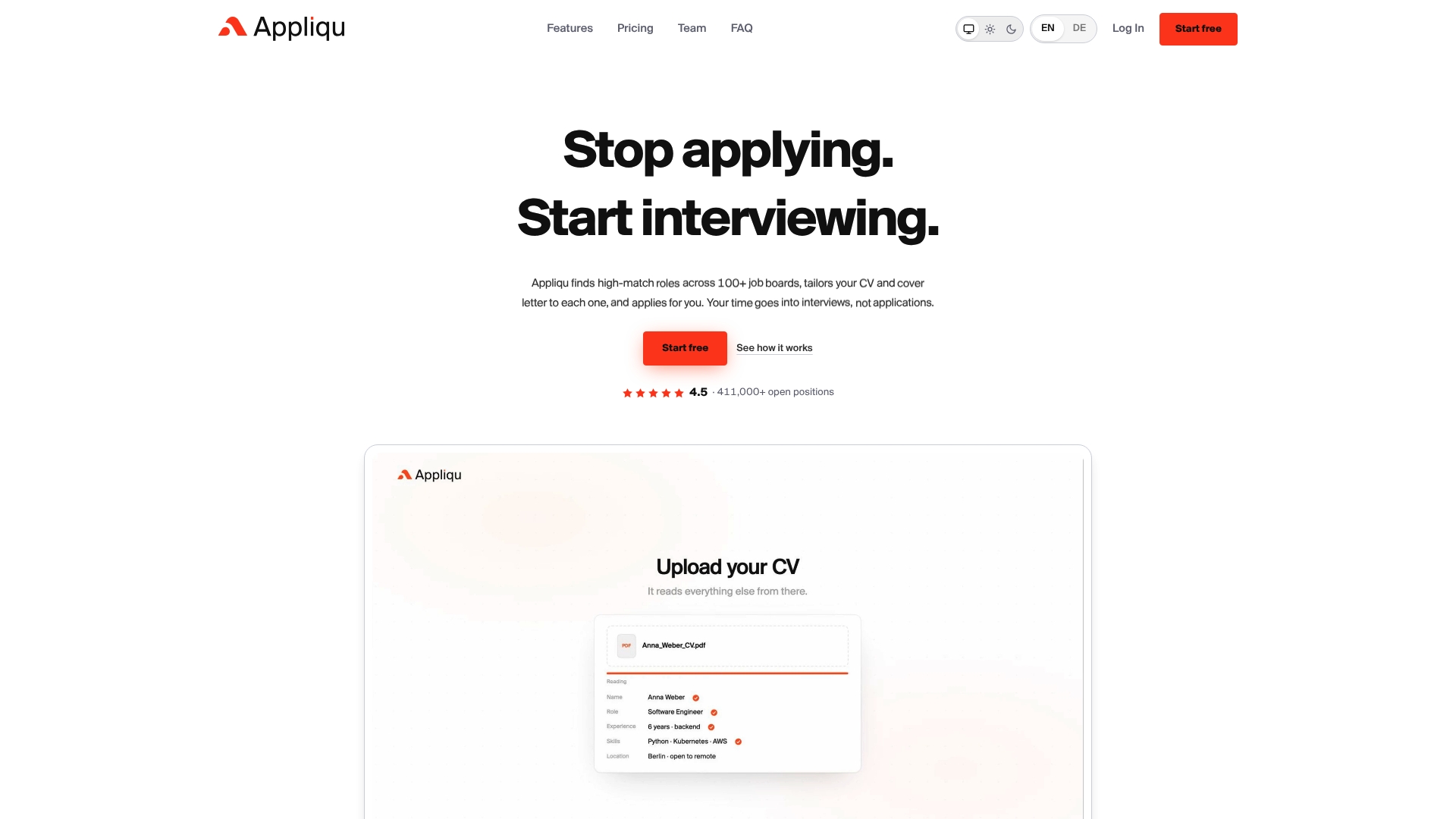
Once your alerts are tuned and relevant postings start arriving, the applying itself is where most people lose hours. We built Appliqu to pick up exactly there: continuous monitoring across more than 100 job boards paired with tailored, role-specific applications generated for each match.
- Compare Core, Pro, Concierge and Explorer to find the plan that matches how many applications you need each month.
- Start free with Explorer and see five tailored applications before deciding whether to scale up.
FAQ
How can I set up job alerts?
Run a search on the job platform you use, then activate alerts from the search results page or your account's notification settings, choosing a delivery channel and frequency. Keep each alert focused on one role family, location or seniority level for better relevance, as recommended in LinkedIn's guidance.
How do I get alerts for new job postings?
Most job boards let you turn on alerts directly from a completed search, after which matching postings arrive by email or app notification on the schedule you choose. For postings on smaller sites or direct employer pages without a native alert system, a keyword-based Google Alert sent to your email can fill the gap.
How do I set up job alerts on Workday?
From your candidate profile on a Workday-powered career site, create a job agent, name it, set your search criteria and activate it. Workday's own documentation notes that delivery runs on employer-configured processing schedules, so timing can differ between organisations.
Are job alerts legitimate and safe to use?
Job alerts from established platforms such as LinkedIn and Indeed, or from an employer's own Workday-powered career site, are a standard and legitimate feature built into the recruiting process. Treat unsolicited alert-style emails from unfamiliar senders with caution, and only enter personal details on the platform or employer site you intended to use.
Can automation reduce the manual work after an alert arrives?
Setting up alerts covers discovery, but applying to each match still takes time on your own. Appliqu generates tailored applications for roles across more than 100 boards, with Explorer offering five free applications and paid plans from Core upward unlocking higher volumes.
Sources
- Set up internal job alerts. Workday documentation
- Job alerts on LinkedIn. LinkedIn Help
- How to set up job alerts. ECB job agent PDF