Pass ATS: Export and Test Your PDF or DOC Resume in 10 Minutes
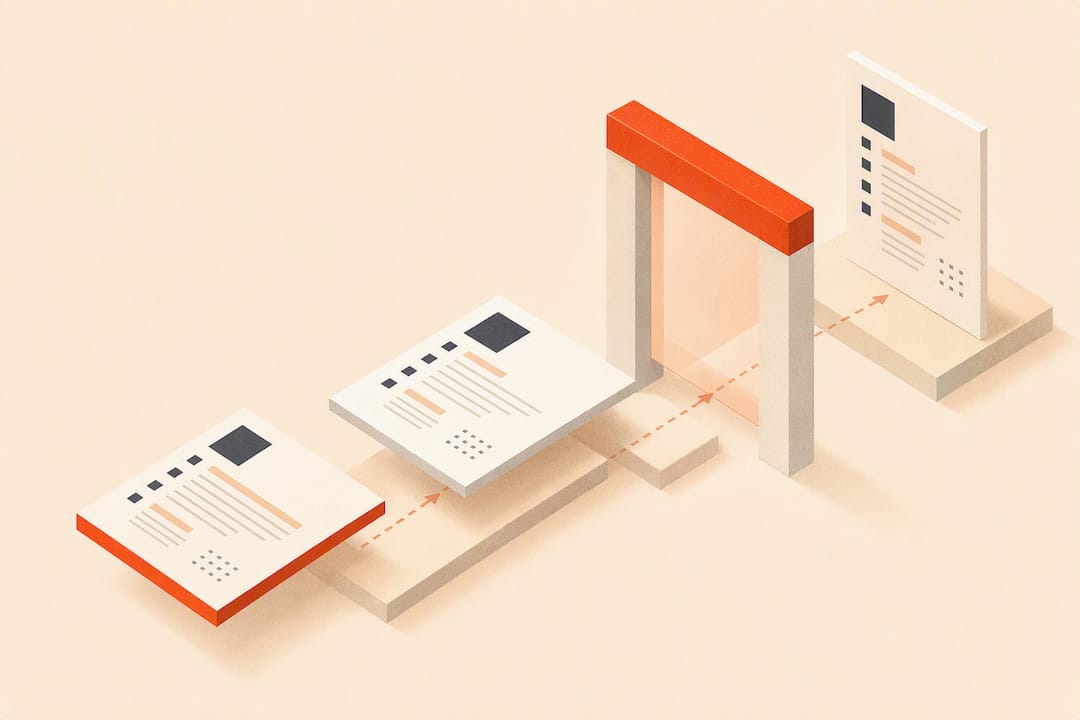
Save your CV as a .docx for anything going through an applicant tracking system, and switch to PDF only when a job advert or recruiter specifically asks for one. That single rule solves most format questions. The one exception that overrides everything else: always follow the instructions on the job advert, and always test your export before sending it to twenty employers at once.
TL;DR:
- Sending a .docx file usually results in more reliable parsing by ATS, especially across unfamiliar systems, unless job instructions specify otherwise.
- PDFs are best for final presentation or email applications, but only if exported from Word using built-in Save As options to retain the text layer.
- Scanned PDFs, multi-column layouts, headers in footers, and decorative fonts cause parsing errors and should be avoided or fixed.
- Before submitting, always test your files by copying and pasting text or highlighting to confirm the text layer is intact and properly selectable.
- For volume applications, maintain a master Word document and export both formats only after testing to prevent common mistakes that block ATS recognition.
Table of Contents
- PDF vs DOC resume: how ATS software and recruiters actually read your file
- PDF resume advantages and where they can backfire
- DOC and DOCX advantages and the hygiene issues to fix first
- PDF or DOC: a decision matrix for real application scenarios
- How to export and test your CV in under ten minutes
- Common formatting mistakes that break ATS parsing, and quick fixes
- How Appliqu fits into a safe CV export workflow
- The workflow I'd actually recommend
- Sources
- FAQ
PDF vs DOC resume: how ATS software and recruiters actually read your file
An applicant tracking system doesn't "read" your CV the way a person does. It extracts text from named fields, files those into a structured profile, and lets a recruiter search or filter on the result. When that extraction fails, your CV can look blank, garbled, or missing entire sections, even if it opens perfectly on your own screen.
The failure modes are predictable once you know what to look for. Image-only PDFs, the kind produced when a CV is exported as a flattened graphic, have no text layer for the ATS to grab, so fields come back empty. Multi-column layouts confuse parsers that read left to right, top to bottom, scrambling your work history into nonsense. Text placed inside shapes, text boxes, or graphic headers often gets skipped entirely, because many parsing engines only scan the main document body.
This is where the DOC vs PDF debate gets more nuanced than most advice admits. Modern ATS engines have improved considerably and now parse PDFs containing selectable text without much trouble. The real risk was never the file extension itself but how the file was produced. That said, when tested across a broad range of ATS platforms, a .docx file still tends to parse slightly more reliably than a PDF, which is why it remains the safer default when you don't know which system sits on the other end.
Recruiters add another layer to this. Recruitment agencies frequently prefer editable Word files because their job involves adjusting formatting, removing identifying details before sending a shortlist to a client, or tailoring a CV's presentation to match house style. That preference is workflow-driven, not technical. A recruiter isn't rejecting your PDF because it's unreadable; they're rejecting the extra friction of converting it back into something they can edit.
A few things worth remembering about how ATS software behaves:
- Text fields (name, dates, job titles) get extracted individually, so inconsistent formatting around them causes mismatches
- Image-only PDFs and scanned CVs return blank or partial fields almost every time
- Multi-column and table-based layouts frequently scramble the order of extracted text
- Headers and footers are sometimes ignored completely by parsing engines
Pro Tip: If you genuinely don't know which ATS a company uses, .docx removes the guesswork. It's the format with the fewest ways to go wrong across unfamiliar systems.
PDF resume advantages and where they can backfire
PDF's biggest strength is fidelity. It locks your layout, fonts, and spacing so what you designed is exactly what a hiring manager sees, whether they open it on a work laptop, a phone, or a tablet on the train. For a final-stage submission, a portfolio-style application, or anything emailed directly to a hiring manager, that visual consistency matters. Adobe's own guidance frames PDF as the presentation-first choice precisely for this reason.
The trouble starts at export. Three habits quietly break a PDF's parseability:
- Image or scanned PDFs: no text layer exists, so an ATS extracts nothing at all
- Font encoding issues: certain fonts embed characters in ways that scramble text when copied out, even though the PDF looks fine visually
- Complex multi-column templates: eye-catching designs from template marketplaces often place text in overlapping boxes that parsers read out of order
Exporting from a design tool, rather than from Word directly, is one of the most common causes of a broken PDF. Design software frequently flattens text into vector shapes or images during export, which looks identical to the human eye but is invisible to any parser.
The fix is straightforward: build your CV in Word, use File → Save As → PDF (or Export, depending on your Word version) rather than printing to a PDF driver or exporting from a graphics program. This keeps the underlying text layer intact.
Pro Tip: After exporting, open the PDF and try to drag your cursor across a line of text. If you can highlight individual words, the text layer survived. If the whole line highlights as one block, or nothing highlights at all, rebuild the export.
DOC and DOCX advantages and the hygiene issues to fix first
Word's core advantage is editability, both for you and for anyone downstream who needs to adjust your CV. Across the broadest range of ATS platforms tested, .docx also tends to parse marginally more consistently than PDF, which makes it the sensible default when an advert gives no format instruction at all.
That reliability depends on the file being clean, though. Word documents carry their own set of risks:
- Tracked changes and comments: leftover edit history can bleed into the parsed text or confuse formatting
- Headers and footers: contact details placed here are sometimes ignored by ATS parsing, so key information vanishes from the candidate record
- Unusual fonts: a decorative or non-standard typeface may not render correctly once the file passes through a different version of Word
- Formatting drift: documents built in one Word version can shift slightly when opened in another, especially across Mac and Windows
Before sending any DOCX file, strip out tracked changes entirely (Review → Accept All Changes, then turn tracking off), and check that your contact information sits in the main body of the document rather than tucked into a header. Stick to standard, widely supported fonts. Then do one final export test to confirm nothing shifted.
Pro Tip: Never send a CV with "Track Changes" still active, even if you've accepted every edit. Some systems still read the underlying revision data and will pull outdated text into the parsed profile.
PDF or DOC: a decision matrix for real application scenarios
The choice usually resolves itself once you ask four questions in order.
- Does the job advert specify a format? If it says "PDF only" or "please submit as a Word document," that instruction overrides every general rule in this article. Recruiters and hiring systems that specify a format usually do so because of a known limitation on their end.
- Are you applying through a recruiter or agency? If so, lean towards DOCX. Recruiters frequently need to edit or anonymise your CV before forwarding it to a client, and a locked PDF adds friction to that process.
- Are you uploading to a corporate ATS portal directly? Use a text-based PDF or a clean DOCX, both of which now perform comparably well when built correctly. If the portal offers a "parse preview" after upload, always check it before submitting.
- Is this a direct email to a founder, hiring manager, or small business owner? PDF is usually the better call here. There's no ATS in the loop, and you want your formatting to arrive exactly as designed.
A few concrete scenarios make this easier to apply:
- Submitting through a recruitment agency: send DOCX. It's what they'll ask for anyway, and it saves a round trip.
- Uploading to a large corporate careers portal: either format can work if built cleanly, but DOCX remains the marginally safer bet when you're unsure which ATS the company runs.
- Emailing a CV directly to a hiring manager at a small company: PDF preserves your design and looks professional regardless of device.
- Applying for a design, marketing, or portfolio-heavy role: PDF, since visual presentation is often part of the assessment, but confirm there's no ATS gate first.
Career-advice polling backs up the presentation preference, too. One LinkedIn poll cited by recruitment site Investigo found a broad hiring-side preference for PDFs on visual grounds, but the practical takeaway stayed the same across most respondents: follow the advert, and keep both versions ready to send at short notice.
Before you commit to either format for a big application push, run through this shortlist:
- Does the advert name a required format?
- Have you tested the export by selecting and copying its text?
- Is your final DOCX free of tracked changes and header-based contact details?
- Does your PDF's text highlight properly when you drag your cursor across it?
How to export and test your CV in under ten minutes
Keep one Word document as your master file. Every tailored version, every application, starts from this single source rather than from edited copies of copies, which is how formatting drift creeps in.
From that master, produce your two output formats correctly:
- Save the master as .docx using File → Save As, keeping the file name simple and professional, ideally "FirstName LastName CV.docx" rather than "CV final v3 NEW.docx."
- Export the PDF from within Word, using File → Save As → PDF or File → Export → Create PDF/XPS, never by printing to a PDF driver or exporting from a separate design tool.
- Avoid scanned or flattened image PDFs entirely. If you've ever had your CV professionally designed in a tool like Canva or InDesign, export a test copy and check it against the selectable-text test below before trusting it for ATS submissions.
- Set the page size to A4 if you're applying to employers in Europe, since US Letter dimensions can cause minor cropping or printing issues on European systems, and name the file using "CV" rather than "resume" for European applications.
Once both files exist, test them:
- Select-and-copy test: open the file, select all the text, copy it, and paste it into Notepad or a plain text editor. If the paste comes out as a clean, readable block in the right order, the file has a working text layer.
- Highlight test for PDFs: try dragging your cursor across a line of text. If individual words highlight, you're fine. If nothing highlights, the PDF is image-only.
- Free ATS checker: run the file through Appliqu's free CV checker to see how a parsing engine actually reads your document, field by field.
A small manual check like this costs you two minutes and prevents the most common submission failures, which is a far better trade than discovering a broken export after forty applications have already gone out.
Common formatting mistakes that break ATS parsing, and quick fixes
Most parsing failures trace back to a small handful of design choices, usually made for visual reasons rather than functional ones.
- Two-column layouts, tables, and text boxes: these confuse parsers that read in a single top-to-bottom, left-to-right order. Fix: rebuild in a single-column layout with standard paragraph formatting.
- Contact details in headers, footers, or icon graphics: many ATS platforms skip headers and footers, and icons carry no text at all. Fix: move your name, phone number, email, and location into the main body, near the top of the document.
- Non-standard or decorative fonts: unusual typefaces can render incorrectly once the file moves between systems, and some embed characters oddly during PDF export. Fix: stick to Arial, Calibri, or Times New Roman.
- Scanned or image-based PDFs: these have no extractable text at all. Fix: rebuild the CV as a native Word document and export cleanly, rather than scanning a printed copy.
Pro Tip: If you inherited a CV template from a design marketplace, treat it as a visual starting point only. Rebuild the actual text content in a plain, single-column Word layout before exporting, even if that means sacrificing some of the original design flair.
These four mistakes account for the overwhelming majority of parsing complaints job seekers report, and every one of them is fixable in under fifteen minutes with the ATS-friendly formatting guidance covered here.
How Appliqu fits into a safe CV export workflow
Some services maintain a single master CV for you and tailor it to each job posting applied to, rather than starting from scratch or reusing a stale template across dozens of applications. Before sending anything, they run ATS-style checks on the tailored document, which reduces the chance of a formatting slip going unnoticed across a large batch of applications.
The manual export and test steps in this article, saving cleanly, checking the text layer, confirming the file name, still matter. What automation adds is consistency at volume: the same naming convention, the same clean export process, applied every single time rather than only when you remember to check.
Appliqu reads the full job posting semantically, not just for keyword matches, and generates the tailored CV and cover letter from that analysis. That doesn't replace the fundamentals covered above; it applies them automatically across every application Appliqu submits on your behalf, whether that's on the free Explorer tier or once sending begins with a paid plan.
The workflow I'd actually recommend
Keep one Word master. Export a .docx for anything going through a portal or a recruiter, export a PDF from Word (never from a design tool) for direct or presentation-focused submissions, and test both before you send a single application. That's the whole system, and it's boring on purpose.
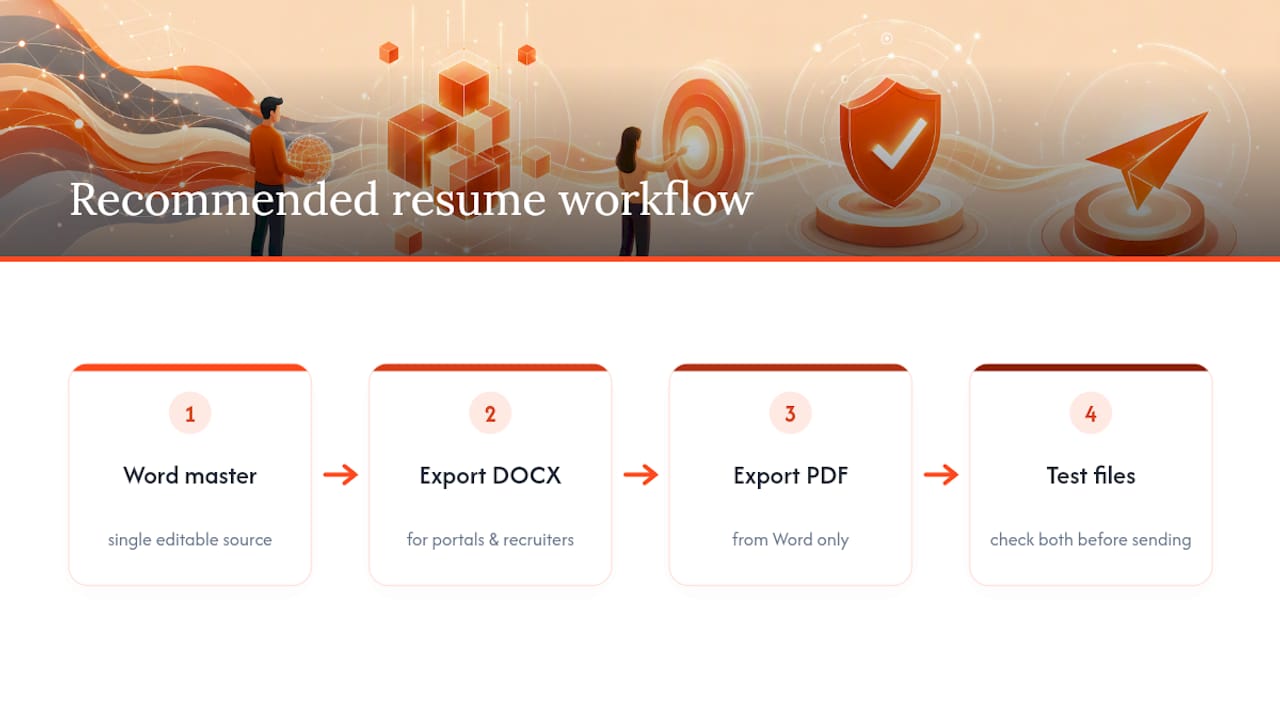
The value shows up at volume. One CV, checked once, is easy to get right by instinct. Twenty applications sent across a week, each slightly tailored, is where an unchecked font substitution or a header full of contact details quietly costs you visibility in an ATS you'll never see. Testing takes two minutes per file. Not testing costs you interviews you'll never know you missed.
The caution I'd add: don't let the format debate become an excuse to avoid mass-applying carefully. A perfectly exported PDF sent to the wrong roles helps you no more than a broken one sent to the right ones. Get the file right, then get the targeting right, in that order.
Alex
Sources
- PDF vs Word for ATS, Which Passes More? (2026)
- Can ATS read PDF resumes? PDF vs DOCX, Text vs Scanned
- PDF vs Word CV: What UK employers prefer
- Should my resume be a PDF? (Adobe)
FAQ
Is it better to send a CV as a DOC or a PDF?
DOCX is the safer default for ATS submissions because it tends to parse slightly more reliably across a broad range of systems. Use PDF when the job advert requests it, or for direct, presentation-focused applications where no ATS is involved.
Do employers prefer PDF or DOCX?
It varies by workflow. Recruiters and agencies often prefer DOCX because they need to edit or anonymise CVs before forwarding them, while hiring managers reviewing applications directly frequently prefer PDF for its consistent presentation.
Are PDFs good for CVs?
Yes, provided the PDF contains a genuine text layer rather than being an image or scanned file. A text-based PDF exported directly from Word preserves formatting and generally works well with modern ATS software.
Is PDF ATS friendly?
Modern ATS engines can read PDFs successfully as long as the file has selectable text. The failures come from image-only or flattened PDFs, not from the PDF format itself.